
The Standard Input tab is accessed by clicking on the leftmost tab and appears as follows:
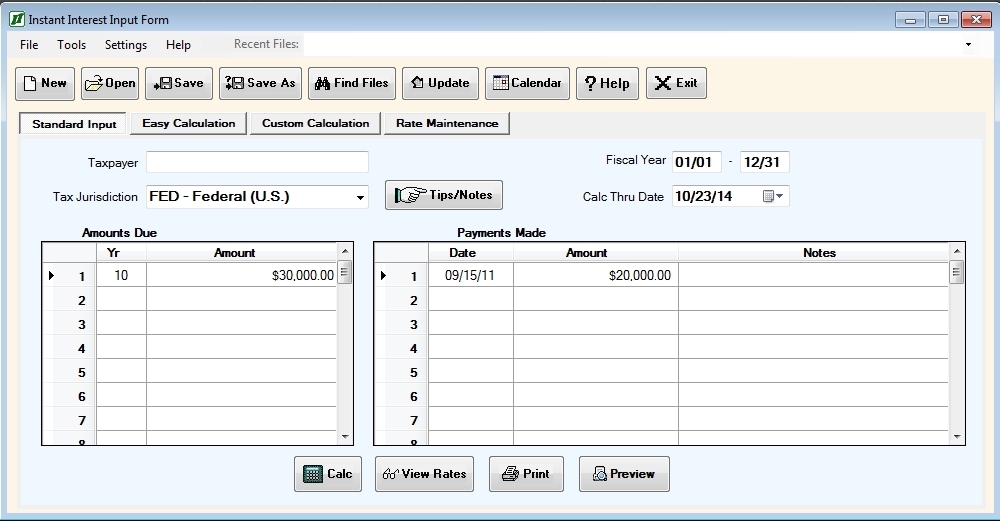
The input areas consist of four fields and two tables. The four fields are:
Taxpayer is a comment only field (that is, it has no effect on the calculations) that can be used to document the taxpayer for the interest schedule. This is useful for worksheets which are saved for reuse later or printed.
Fiscal Year is the month and day of the beginning and end of the taxpayer’s fiscal year. Instant Interest will automatically determine the ending month and day. When an interest schedule is calculated, Instant Interest will use the fiscal year beginning in conjunction with the tax jurisdiction’s due date for calendar year end taxpayers to determine the due dates for your interest schedule.
Tax Jurisdiction is the tax jurisdiction for which interest is being calculated. The tax jurisdiction can be selected from a list by clicking on the down arrow at the right of the input field. You can also enter the tax jurisdiction by keying in the appropriate abbreviation. In most cases the abbreviation for a tax jurisdiction is the standard two letter abbreviation for a state and its name, but it may be FED – Federal, DC – District of Columbia, NYC – New York City, or another jurisdiction which you have added. Note: Because NYC is used for New York City, NYS is the abbreviation for New York State.
Thru Date is the date (in MM/DD/YY format) through which the interest is to be calculated.
The two tables are:
Amounts Due identifies the fiscal year for which income tax was due and the amount of tax due for those years.
Payments Made identifies the dates and amounts of any payments made on taxes and/or interest due. It can also be used to record additional assessments made.
The Amounts Due table has four columns:
- A line number;
- A Del(ete) button;
- Year is the last two digits of the fiscal year end for which the amount is due.
- Amount is the amount due for the designated fiscal year.
Only the third and fourth columns are data entry fields.
The Delete button is used to delete a line from the table. When you point at the Delete button and click on it, you will receive a prompt asking you if you really want to delete that line (provided there is data on that line).
The Payments Made table has five columns:
- A line number;
- A Del(ete) button;
- Date is the date on which the payment/additional assessment was made;
- Amount is the amount of the payment/additional assessment;
- The Notes field can be used to annotate the payment/additional assessment.
Positive amounts in the amount column of the Payments Made table indicate payments made. Negative amounts can be used to indicate additional assessments made. In the example shown at the start of this section, there is a $30,000 payment made on 7/15/92 and an additional assessment of $25,000 on 8/13/93.
The Delete button is used to delete a line from the table. When you point at the Delete button and click on it, you will receive a prompt asking you if you really want to delete that line (provided there is data on that line).
The Standard Input tab also has five command buttons, as follows:
The Tips/Notes button is used to look up any unique tips or notes regarding calculating interest for the Tax Jurisdiction in the Instant Interest help system. It appears as active (text in black) if there are notes and inactive (text in grey) if there are not.
The Pick button is used to select the Thru Date from a calendar instead of entering it directly.
The Calculate button is used to generate and display an interest schedule based on the values in the current worksheet.
The View Rates button is used to display the interest rates, due dates, and calculation methods stored in the Instant Interest rate file for the current tax jurisdiction.
The Print button is used to generate and print an interest schedule based on the values in the current worksheet.
The command buttons that appear above the Standard Input tab ("New", "Open", etc.) are common to all four of the basic input forms and are described under Common Input Form Buttons.